10 tips for 10 years of Google Photos
Ten years ago today, we introduced Google Photos as a home for your photos and videos. Since then, we've added tons of features that make it so much more than that: AI tools help you instantly find that specific photo you’re looking for; editing options let you bring your photos to life; and new sharing features make it easier than ever to stay in touch.
Today, more than 1.5 billion people use Google Photos each month, with over 9 trillion total photos and videos stored. Every month, more than 370 million people search their photos, 440 million share their memories and 210 million edit their photos.
To celebrate Google Photos’ 10th birthday, we’re sharing 10 tips, tricks and tools — including updates to our editor and a new way to share albums instantly.
- New! Edit with ease with a redesigned editor. Over the years, we’ve used AI to make complex photo editing accessible to everyone. Now we’re launching a new editor that provides helpful suggestions and puts all our powerful editing tools in one place. You can use AI-powered suggestions that combine multiple effects for quick edits in a variety of tailored options, or you can tap specific parts of an image to get suggested tools for editing that area. You’ll also find popular tools like Reimagine and Auto frame (first launched in Magic Editor for Pixel 9 and now expanding to many more devices 1 ) right alongside other controls like brightness and contrast. This will begin rolling out globally to Android devices next month, with iOS following later this year.
The redesigned editor now puts all our editing tools in one place.
Simply tap to select the subject, background or any part of your image, and you’ll see suggested tools specifically tailored to enhance that area.
New AI powered suggestions find the right edit for your photo, combining new photo-fixing capabilities for tone and color, erase, unblur, portrait light and more.
Unleash your creativity with Reimagine and let Auto frame expand your scene or nail the ideal crop.
2. New! Share albums instantly with QR codes. Sharing photos is getting even easier. Starting to roll out now, you can generate a QR code for easy album access with people nearby, or print it for group events. Anyone can just scan the code and view or add photos.
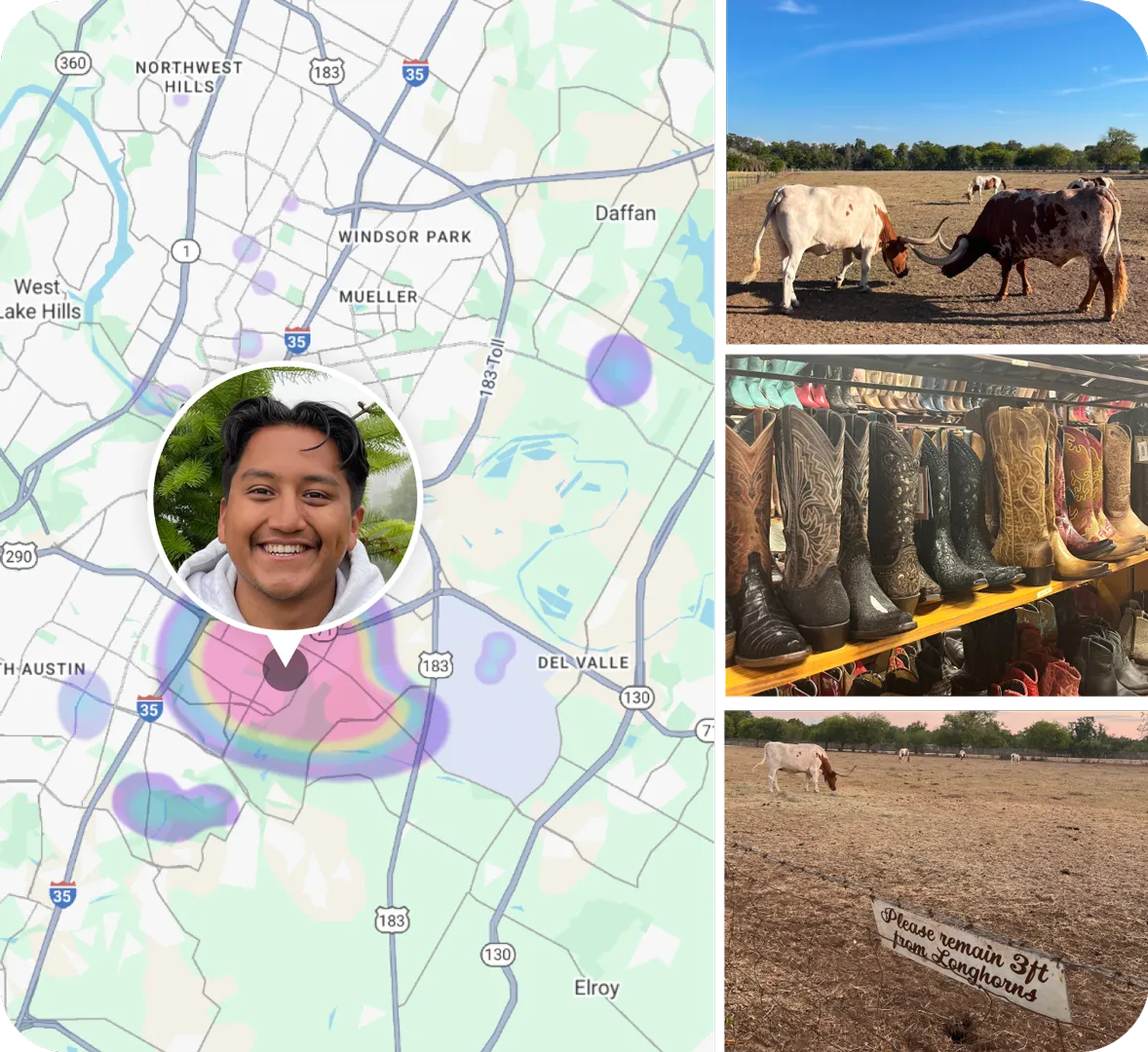
3. Revisit the places you’ve been. Under the collections tab, just tap on “Places” to relive all your travels. Here, you’ll see your photos geographically pinned on an interactive map so you can take a trip down memory lane.
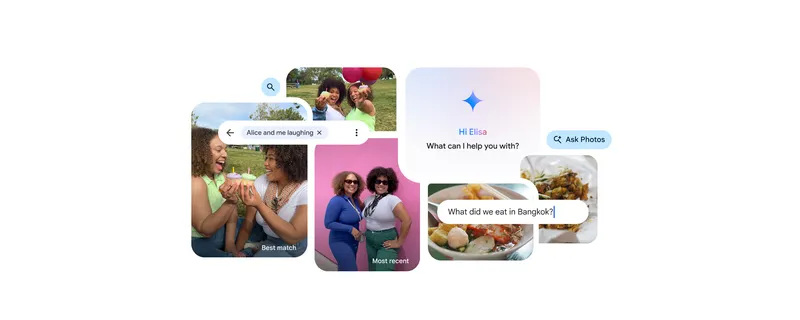
4. Get specific with your searches. Ask exactly what you’re looking for without worrying about using the right keyword with search in Google Photos — like "me in a sparkly blue dress" or "Alice at the beach." For the best results, be sure to name the faces (including your own) in the "People & Pets" section.
5. Enjoy a look back at your month or year. Get your dose of nostalgia with the "Best of Month" and " Year End Recap" memories Google Photos automatically whips up. It's a cool way to relive some core memories and they’re perfect for sending to friends and family.
6. Create a personal montage to share. Simply tap on the “+” button, select highlight video and choose the things you want to include — yourself, your friends, pets, an event or even a place. Photos will automatically combine your memories into a short video with music that’s perfect for sharing.
7. Use shared albums to stay close with long-distance family and friends. Did you know you can automatically add new photos of people and pets you choose to a shared album and updates will roll into their app — or even their photo frames? It’s a great way to share photos of the pet you and your partner are equally obsessed with or virtually take loved ones on an adventure with you.
8. Personalize what you see in your grid. If you have certain photos cluttering up your feed, take advantage of grid controls by tapping on the three-dot icon at the top of your main gallery. For example, you can let Photos stack similar pictures that were taken close together to declutter your gallery or hide screenshots, GIFs and memes.
9. Choose what memories you see (and what — or whom — to hide). You can customize what appears in your Google Photos memories: Hide specific people, pets or dates and choose between time-based or themed memories under Settings > Preferences > Memories.
10. Free up space on your device. If storage on your phone is running low, Photos can help you easily get some of it back. Just tap your profile picture, then “Free up space on this device” to remove items that are already safely backed up to your Google Photos account. You can still view them any time in Google Photos while getting more space on your phone for whatever you need.
With so many memories made over the last decade and as we look towards the future, we’ll continue pushing the boundaries of what's possible with AI, unlocking new ways to relive, connect with and share memories.